客服热线:
 手机版
 二维码






























Catch A Move Plus
Trade price movement
Set the conditions upon which orders will be made if the price moves a certain amount of pips within certain time span.
Parameters
- Color Theme - choose one of 4 themes for the panel.
- Zoom - panel size: 6 sizes available.
- Slippage - only applicable for 'Instant Execution'.
- Max Trades
- Max Spread
- Lot Size
- Stop-Loss
- Take-Profit - optional.
- S-L Increment
- Trigger
- Tolerance
- Reset Timeout
- Wait For Profit?
- only Own Trades - set to true for EA to modify/close orders opened by itself only
Features
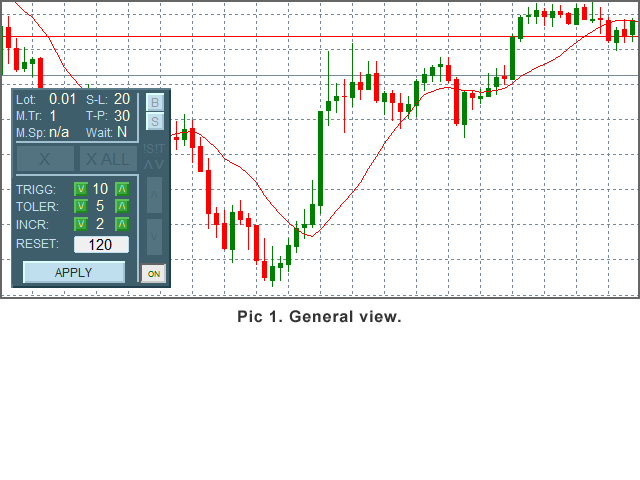
- Current parameters display
- only Buy/only Sell Buttons
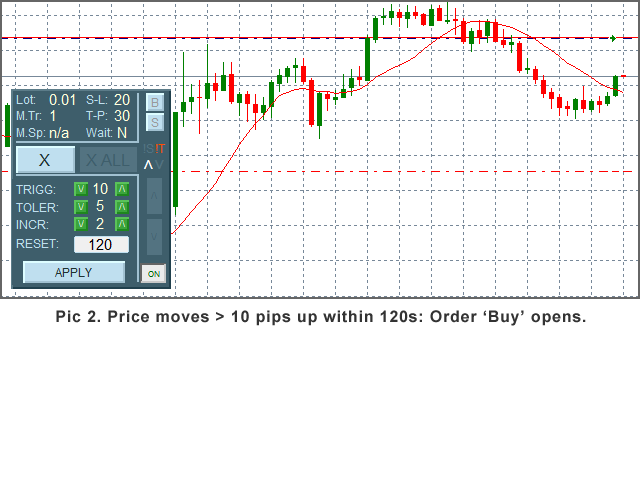
- Button 'X' (Close) - activates after an order opens.
- Button 'X ALL' - close all orders, activates when 2nd order opens.
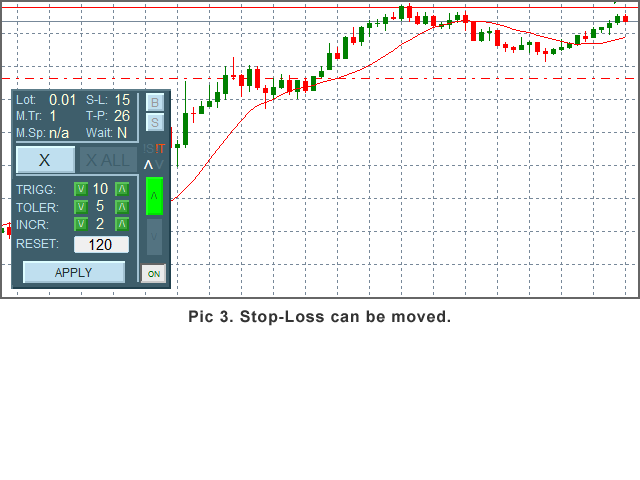
- In-Panel Form - use to change values of Tolerance, Trigger, Reset Timeout and S-L Increment.
- '!' Indicators - show up when Spread > Max Spread or 'Max Trades' reached.
- Arrow-indicators - show current order type.
- Buttons to move SL
- Session On/Off Button
This robot analyses price movement and opens orders when the conditions set by the trader are met. There are 3 parameters that control order opening:
- Trigger: the movement, in full pips, that triggers order opening.
- Tolerance: max price movement opposite way - if the price moves more, the point from which 'Trigger' is calculated is reset to the current price.
- Reset Timeout: in seconds - if an order does not open by the time set by this parameter, the 'Trigger' is reset. Set it to 0 if you want to disable the parameter (not recommended).
Use the In-Panel Form to change these parameters any time.
Example: Trigger = 10, Tolerance = 5, Reset = 120. With these settings the order would be opened if the price moved 10 or more pips in one direction within 120 seconds. If, during its move the price reversed by more than 5 pips, the Trigger's starting point would be reset and the movement would be observed the next 120 seconds.
When you have set your parameters up, open a trading session by clicking the On/Off Button. After the last order has been opened and you decided to not make any more orders, just click the button again and no more orders will be made by the robot. If you have changed some parameters in the metaTrader 'Inputs' panel (F7), the session is turned off, so you have to turn it back on if you want the robot to keep trading.
There can be as many orders opened at a time as you set in Max Trades (up to 5). Orders will not be opened if current Spread > Max Spread - useful if you trade fast-moving markets, e.g. around economic news.
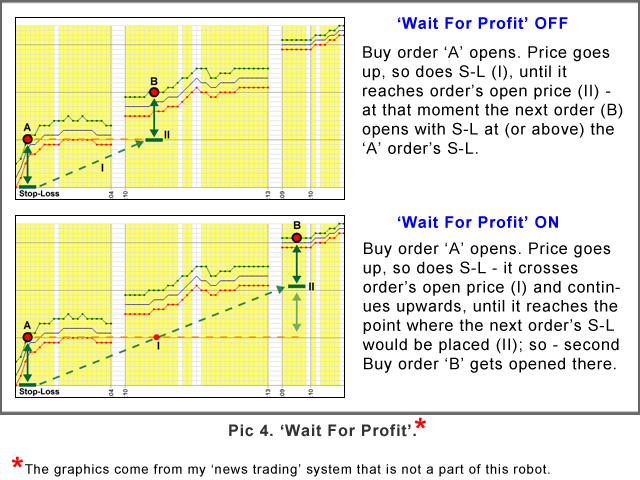
If you have set Max Trades > 1, the next trade will be opened when the price has reached current order's (or most recent if there are 2 or more already open) Stop-Loss. If you set Wait For Profit to Y, the next order will be opened when the price on the chart reaches the point where the next order's Stop-Loss would be at least equal to the current order's Stop-Loss. Look at the Pic 4. 'Wait For Profit'.
Use only Buy ('B') or only Sell ('S') Buttons to limit order type to only one, e.g. if you want to trade the trend.
When SL can be moved, the button S-L Down or S-L Up will show up.
You can close the order(s) by clicking an appropriate button. ('X' if you want to close one order, 'X ALL' if you want to close all orders).
Moving the panel across the chart window: just double-click the top part of the panel, then click, hold and drag the panel to another place. Double-click the area again to keep the panel in the new position.
Notes
- If you make any changes to the parameters using the MT 'Inputs' window (F7), the parameters: Trigger, Tolerance, Reset and S-L Increment will be reset to their initial values. The robot's session will also be turned off, turn it back on if you want the robot to keep trading.
- For testing the robot in the Strategy Tester, use the 'Visual Mode' if you want check the 'ONLY' Buttons (B, S). The form and the session button do not work in S.T. Session is 'On' during test.
- It is hard to find one set of parameters that would work in all market conditions, therefore the testing usually does not show good results.
本店最新上架
-
- MT4 MT5跟单EA 本地跟单远程跟单 绝不

- ¥1100.00
-
- 在MetaTrader市场购买MetaTrader 5的&#
- ¥3988.00
-
- 在MetaTrader市场购买MetaTrader 5的&#
- ¥3988.00
-
- 在MetaTrader市场购买MetaTrader 5的&#

- ¥3988.00
-
- 在MetaTrader市场购买MetaTrader 5的&#

- ¥3988.00
全网为您推荐
-
- AlgoTradeSoft

- ¥3988.00
-
- 国际期货套利软件

- ¥3988.00
-
- MT4 MT5跟单EA 本地跟单远程跟单 绝不
- ¥1100.00
-
- 在MetaTrader市场购买MetaTrader 5的&#
- ¥3988.00
-
- 在MetaTrader市场购买MetaTrader 5的&#
- ¥3988.00