客服热线:
客服热线: 手机版
手机版 二维码
二维码































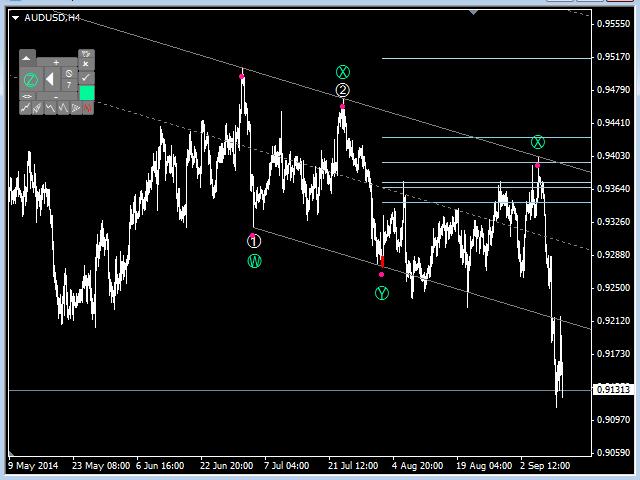
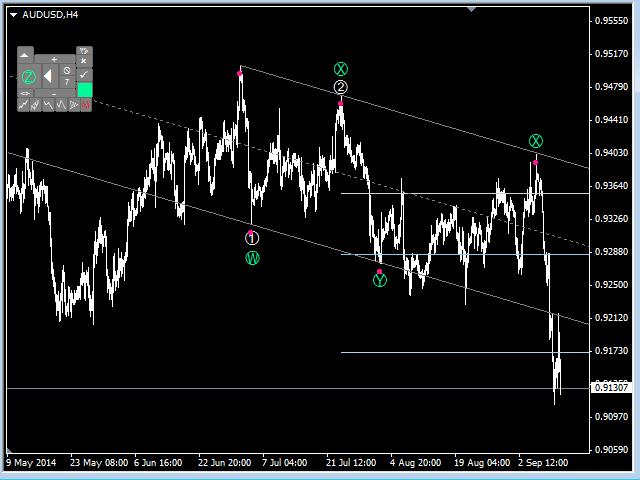
Elliott Wave Assistant
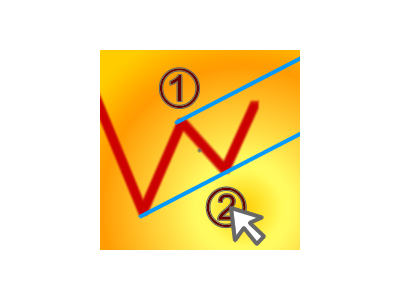
This is our newer and improved tool to assist you in the Elliott Wave counting, which represents an improved version of the ElliottWaveTool7pasos idea.
How to Use It
Start counting a new wave
Start by clicking the "<>" button to indicate you want to deselect any previous wave (if applied).
Set the pattern's type that you want to count (if you do not have our free Elliott Wave Font, you will see the letters instead of the pattern's icons in the Type's Section buttons: I=Impulse, D=Diagonal, Z=Zigzag, F=Flat, C=Combination or double zigzag). If needed, set the sub-pattern.
Set the degree (and instance) by clicking the "+" or "-" panel's buttons.
Set the color (this will help you to differentiate between alternate wave counts) by clicking the colored square button.
The next wave you are going to place will be displayed in the "Add Wave" button (the bigger one on the panel). Click on it when ready.
If the wave is starting the pattern, you will see the indication "Set Start" at the mouse cursor. Move your mouse to the desired bar where your wave starts. A red line will indicate the bar that you are pointing at. If you place your mouse below the bar the low of the bar will be used as price reference, if you place your pointer above the bar the high of it will be the price reference. Make a click when ready.
After setting the wave's start point, the first wave will appear under the mouse. This could be 1, A or W depending upon the pattern that you are counting. In the same manner, set the point for placing the first wave. No matter how high or low you place your wave, the red line will be your wave's time reference, and the high (if you clicked above the bar) or the low (if you clicked below the bar) will be your wave's price reference. Price reference and time reference will be used to calculate the projections for the next waves.
After you set your wave on the chart, you will immediately see the projections for the next wave. Also, the following wave for the actual wave count will be displayed in the "Add Wave" button.
You can pause a wave count and change to count other pattern by clicking the "<>" button any time you are not dragging a wave.
If you want to change the position of a wave, double click on it as if you were to select it and then the wave will stick to your mouse. And as if you were placing it for the first time, set its new position.
If you want to cancel the placing process, just press Esc key on your keyboard.
once you placed in your chart an entire wave sequence for the selected pattern, the first wave again will be displayed. If you add this wave by clicking again the "Add Wave" button, a new pattern of the same kind will be counted. You can place up to 100 identical patterns with the very same color degree and instance.
Deleting the last wave
Just click on one of the pattern's waves, and then click the button with the white triangle pointing to the left: the last wave of your pattern will be deleted. Click the button as many times as you need to reach the desired wave and delete it.
Change characteristics with pattern waves already in place
To change any of the characteristics of a pattern, just click on any of its waves and then click on the new characteristic you want to apply. For example, if you want to change a 1, 2, 3, 4 impulsive pattern for a W, X, Y, X pattern, click on any of the waves, then click the combination button and then the desired kind of pattern (for combinations you can choose "DTZ" for double or triple zigzags or "DTC" for double or triple combinations). once you click the button of your choice, you will see how the tool changes all the waves for the new right pattern and the new projections (if applied).
You can change color, degree and pattern at any time.
In the comments section, you will find the instructions for the following functions:
- Deleting all waves from a pattern at once
- Plot projections for the next wave
- Hide patterns from actual and higher timeframes
- Minimize the panel
- Move the panel
- Cleaning the chart
- Switching fonts
- Add/Remove special indications
- How to understand the Instance Number


本店最新上架
-
- MT4 MT5跟单EA 本地跟单远程跟单 绝不

- ¥1100.00
-
- 在MetaTrader市场购买MetaTrader 5的&#
- ¥3988.00
-
- 在MetaTrader市场购买MetaTrader 5的&#
- ¥3988.00
-
- 在MetaTrader市场购买MetaTrader 5的&#
- ¥3988.00
-
- 在MetaTrader市场购买MetaTrader 5的&#

- ¥3988.00
全网为您推荐
-
- AlgoTradeSoft

- ¥3988.00
-
- 国际期货套利软件

- ¥3988.00
-
- MT4 MT5跟单EA 本地跟单远程跟单 绝不
- ¥1100.00
-
- 在MetaTrader市场购买MetaTrader 5的&#
- ¥3988.00
-
- 在MetaTrader市场购买MetaTrader 5的&#
- ¥3988.00