客服热线:
 手机版
 二维码






























Fundamental News Panel
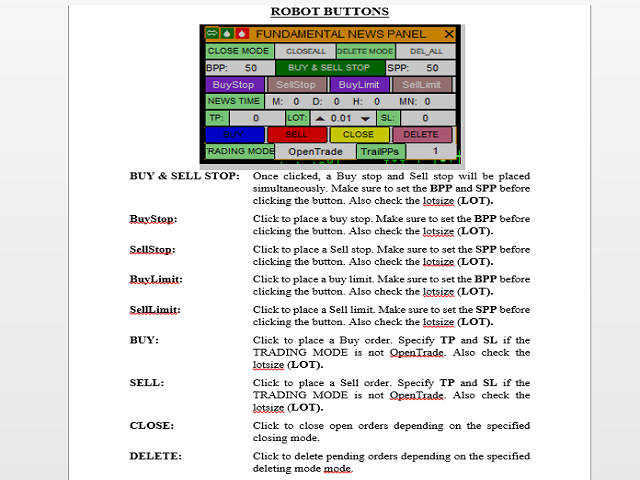
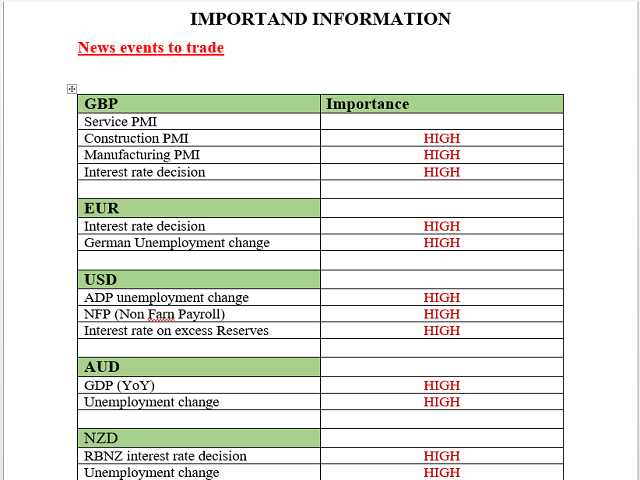
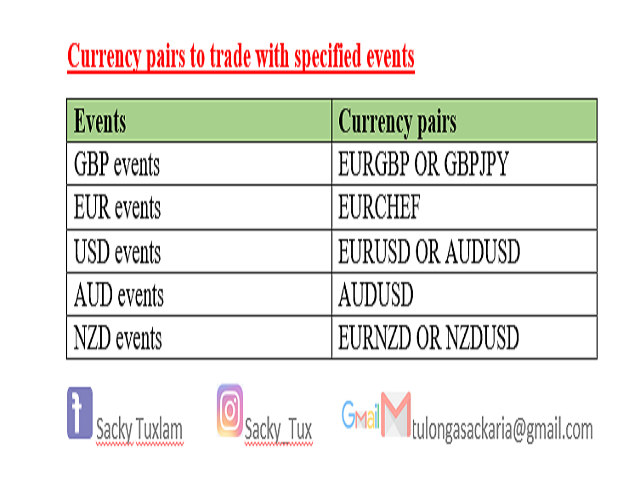
The strategy used by this trading robot is placing stop orders (Pending) before the news event. The news event release time can be accessed from investment.com an app that the trader must download from play store into his/her mobile device. The robot places two stop orders, a Buy Stop and Sell Stop at the same time at least two minutes before news release time. For example, if the news release time is 15:30, the pending orders will be opened at 15:28(see how to insert the news time at screenshot). There are two ways for placing stop orders; Either manual by pressing the Buy & Sell Stop button or by entering the time of placing pending orders in the trading panel. When the news is released the robot waits for one pending order to trigger and delete the untriggered order immediately. If no trade is activated, both pending orders will be deleted. The traders can choose to use stop losses, trailing stops, And take profit. Additional buttons are available on the robot trading panel for additional trading functions as shown in the next figure.
ROBOT INPUTS
BPP(Buy Stop PiPs): The user should enter the number of pips for placing a buy stop above the market price. Make sure this value is more that TrailPPs before pressing the BUY & SELL STOP button else you will get an error. The BPP value is set 50 in this example. To change the value, click on this number.
SPP(Sell Stop PiPs): The user should enter the number of pips for placing a sell stop below the market price. Make sure this value is more that TrailPPs before pressing the BUY & SELL STOP button else you will get an error. The BPP value is set 50 in this example. To change the value, click on this number.
TP and SL: (Take Profit and Stop Loss) Enter the value in pips for the trades take profit and stop loss.
LOT (Lot size): Specify the trading volume or lotsoze for your orders. You can change this value by typing or by using the up and down arrow in the panel.
TrailPPS: (Trailing pips) The value at which you want the robot to lock in profits and start trailing. In the pictuire this value is set to 1 but you change it by clicking on the value. If the trader forget to specify this value, a default value will be assigned based on the symbol minimum stop limit.
TRADING MODE: This gives options to the trader on how you want to control your open trades. Those options includes; OpenTrade, SL_TrailS, TP_TrailS, TP_SL_Only, TP_SL_TrailS. These options will be describe here. To change the mode, hover your cursor to the current mode and click, the next mode will display.
OpenTrade Allows you to trade with no stoploss and no take profit. The trader may close his/her trades manually.
SL_TrailS Allows you to use stoploss and trailing stop only. Indicate the trailing pips by Changing the TrailPPS value or use the default value. Also, specifiy the SL value; the number stop loss pips.
TP_TrailS Allows you to use take profit and trailing stop only(no stoploss) but locks in profits. Indicate the trailing pips by Changing the TrailPPS value or use the default value. Also, specifiy the TP value; the number take profit pips.
TP_SL_Only Allows you trade with take profit and stoploss only. No trailling stop will be used. Specify the number of TP and SL pips.
TP_SL_TrailS Allows you trade with take profit, stoploss and Trailling stop. Specify the number of TrailPIPs, TP and SL pips.
CLOSE MODE: This function gives the trader options for closing open trades. The trading modes include: CLOSEALL, CLOSEPRIFT and CLOSELOSS. To change the mode, click on the active mode, the next moide will display.
CLOSEALL Option for closing all open trades once the CLOSE button is clicked.
CLOSEPROFIT Close all open trades in profits only once the CLOSE button is clicked.
CLOSELOSS Close all open trades in losses only once the CLOSE button is clicked.
DELETE MODE: This function provides options for deleting pending orders once the DELETE button is clicked. To change the mode, hover the cursor over the displaying mode and click on it, the next mode will display. The modes include; DEL_ALL, DEL_BUYSTOP, DEL_SELLSTOP, DEL_BUYLIMIT and DEL_SELLSTOP.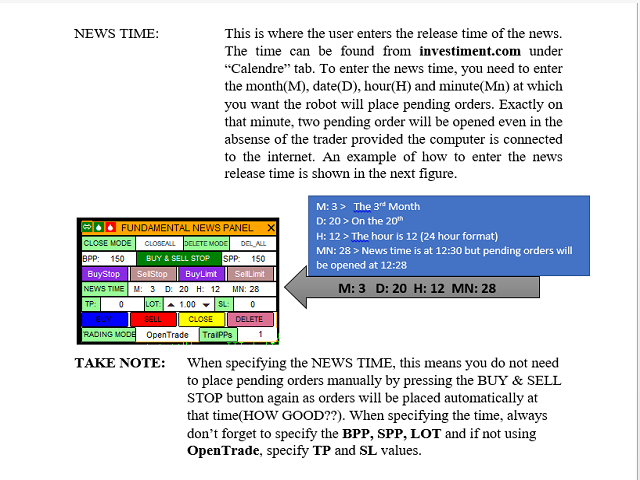


本店最新上架
-
- MT4 MT5跟单EA 本地跟单远程跟单 绝不

- ¥1100.00
-
- 在MetaTrader市场购买MetaTrader 5的&#
- ¥3988.00
-
- 在MetaTrader市场购买MetaTrader 5的&#
- ¥3988.00
-
- 在MetaTrader市场购买MetaTrader 5的&#
- ¥3988.00
-
- 在MetaTrader市场购买MetaTrader 5的&#

- ¥3988.00
全网为您推荐
-
- AlgoTradeSoft

- ¥3988.00
-
- 国际期货套利软件
- ¥3988.00
-
- MT4 MT5跟单EA 本地跟单远程跟单 绝不
- ¥1100.00
-
- 在MetaTrader市场购买MetaTrader 5的&#
- ¥3988.00
-
- 在MetaTrader市场购买MetaTrader 5的&#
- ¥3988.00