客服热线:
 手机版
 二维码































Orders assistant Robot
This software will give you the possibility to do different things (both in live markets and in strategy tester).
You'll have at your disposal 5 operative panels, each one of these have buttons that let you interact easily at market:
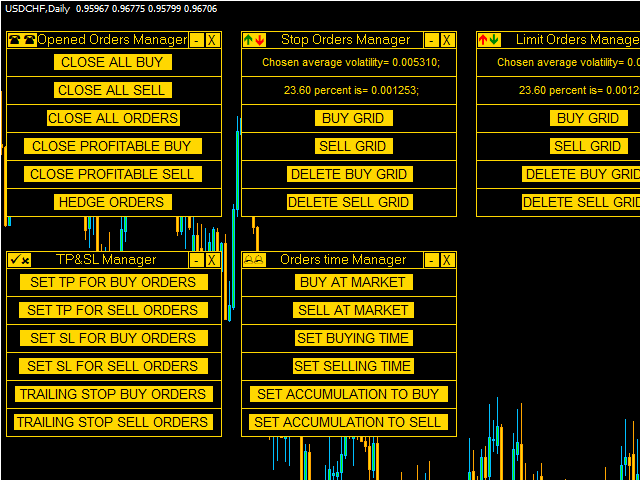
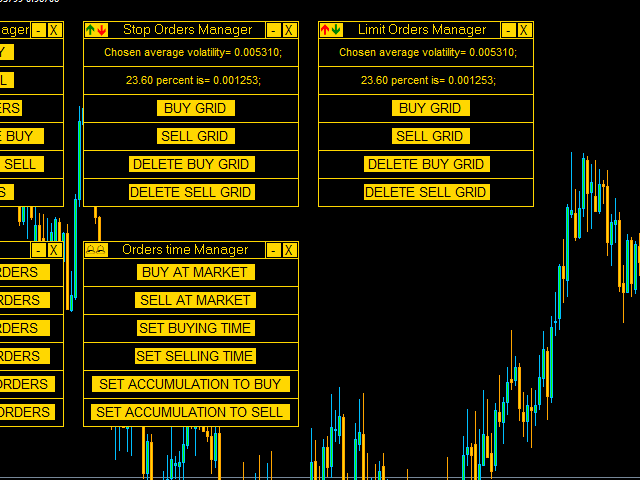
1. Opened Orders Manager (screenshot 1):
6 buttons:
- Close all buy orders.
- Close all sell orders.
- Close all orders.
- Close all profitable buy orders.
- Close all profitable sell orders.
- Hedge orders.
2. Stop Orders Manager (screenshot 1):
2 informative sections:
- Numerical value of the average volatility chosen in the inputs section.
- Numerical value of the average volatility chosen, based on the percentage chosen in the inputs section.
4 buttons:
- Set a buy stop grid.
- Set a sell stop grid.
- Delete the buy stop grid.
- Delete the sell stop grid.
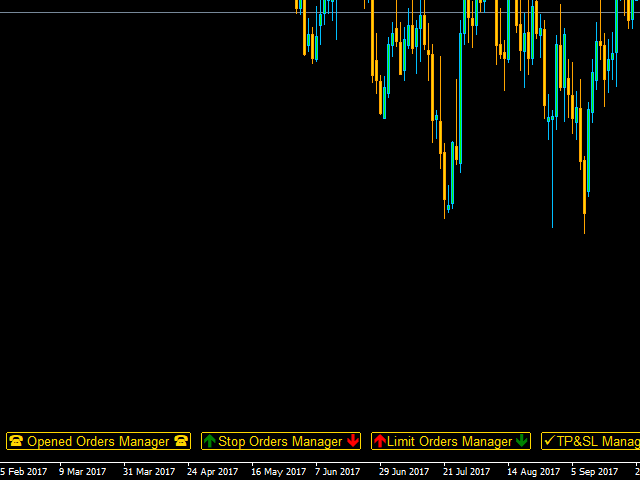
3. Limit Orders Manager (screenshot 4):
2 informative sections:
- Numerical value of the average volatility chosen in the inputs section.
- Numerical value of the average volatility chosen, based on the percentage chosen in the inputs section.
4 buttons:
- Set a buy limit grid.
- Set a sell limit grid.
- Delete the buy limit grid.
- Delete the sell limit grid.
4. TP&SL Manager (screenshot 1):
6 buttons:
- Set take profit for buy orders in points.
- Set take profit for sell orders in points.
- Set stop loss for buy orders in points.
- Set stop loss for sell orders in points.
- Set trailing stop for buy orders in points.
- Set trailing stop for sell orders in points.
5. Orders time Manager (screenshot 1):
6 buttons:
- Buy now at market.
- Sell now at market.
- Schedule a buy at a certain time (Hour and minute).
- Schedule a sell at a certain time (Hour and minute).
- Buy now at market and choose a time interval at which buy again. once activated, button will change to allow you to stop accumulation.
- Sell now at market and choose a time interval at which sell again. once activated, button will change to allow you to stop accumulation.
Other than this, you'll have at your disposal two other panels on your right.
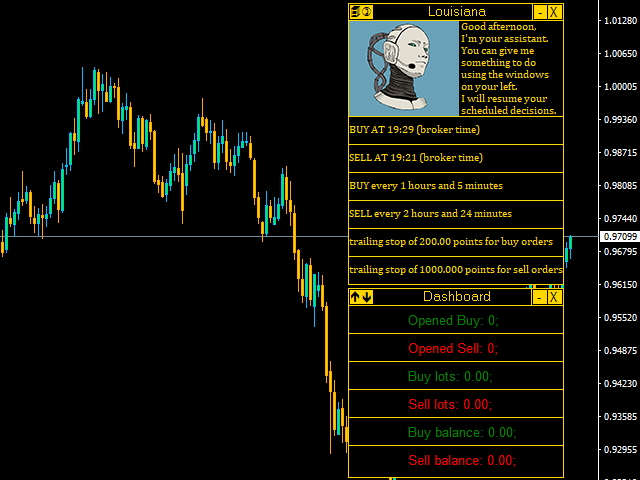
Starting from above you can find your personal assistant (screenshot 2), she will resume your scheduled decisions.
Scheduled decisions means your hypothetical 6 different choices:
- You've scheduled a buy operation.
- You've scheduled a sell operation.
- Your set a buy accumulation.
- Your set a sell accumulation.
- Your set trailing stop for buy orders.
- Your set trailing stop for sell orders.
Below, you have your Dashboard (screenshot 2) where you can find these infos:
- Number of opened buy orders.
- Number of opened sell orders.
- Buy exposition (lots).
- Sell exposition (lots).
- Buy orders balance.
- Sell orders balance.
Each panel can be iconified on chart bottom or closed.
Parameters
- LOTS FOR TIME ORDERS: Set lots for Orders time Manager panel.
- SLIPPAGE: Set slippage.
- MAGIC BUY: Set magic number for buy orders.
- MAGIC SELL: Set magic number for sell orders.
- BUY COLOR: Set your favourite color for buy orders.
- SELL COLOR: Set your favourite color for sell orders.
- LOTS FOR PENDING ORDERS: Set lots for grid orders.
- AVERAGE VOLATILITY BARS: Set average period.
- AVERAGE VOLATILITY TIME: Set average volatility timeframe.
- % FOR STOP & LIMIT ORDERS: Choose average volatility percentage to set the distance between grid orders (both limit and stop orders).
- PENDING ORDERS NUMBER: Number of pending orders that the EA will put on the market when you set a grid.
- BACKGROUND COLOR: Set background color.
- FRONT COLOR: Set front color.
Setup
This panel is an EA. So you have to install it in your MQL4/Experts folder.
本店最新上架
-
- MT4 MT5跟单EA 本地跟单远程跟单 绝不

- ¥1100.00
-
- 在MetaTrader市场购买MetaTrader 5的&#
- ¥3988.00
-
- 在MetaTrader市场购买MetaTrader 5的&#
- ¥3988.00
-
- 在MetaTrader市场购买MetaTrader 5的&#

- ¥3988.00
-
- 在MetaTrader市场购买MetaTrader 5的&#

- ¥3988.00
全网为您推荐
-
- AlgoTradeSoft

- ¥3988.00
-
- 国际期货套利软件

- ¥3988.00
-
- MT4 MT5跟单EA 本地跟单远程跟单 绝不
- ¥1100.00
-
- 在MetaTrader市场购买MetaTrader 5的&#
- ¥3988.00
-
- 在MetaTrader市场购买MetaTrader 5的&#
- ¥3988.00